
Before configuring a multi-monitor setup
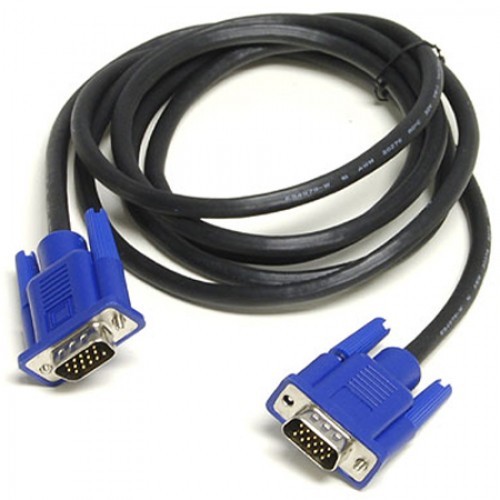
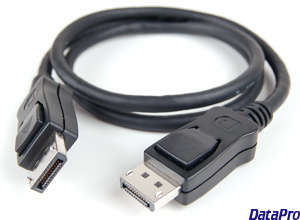
Before configuring multiple monitors on your device, make sure that all the necessary cables are connected to the monitors and the computer. This includes connecting power and video signal using VGA, DVI, HDMI, or DisplayPort (recommended) cables.
Below you will find some examples of the cables mentioned above.
VGA Cord
DVI Cord

Display Port Cable (This particular cable is commonly mistaken for an HDMI cord. Please note the buttons on the top of each end, this is the easiest way to identify if it's a display port cable)
HDMI Cord

If you're not sure, confirm the make and model of the monitor (usually from a sticker in the back), and search online for the manufacturer manual to get a better idea on how to connect the display
How to rearrange multiple displays on Windows 10
While you can connect a monitor to any available video ports on the graphics card, when setting up a dual-monitor or triple-monitor setup, it's easy to plug them in the wrong order. Although they will still work, you may run into issues using the mouse and running applications until you rearrange them correctly.
To rearrange monitors on Windows 10, use these steps:
- Open Settings.
- Click on System.
- Click on Display.
-
Under the "Select and rearrange displays" section, drag and drop each display to rearrange them according to their physical layout on your desktop.

Quick tip: When rearranging monitors in the "Display" settings page, make sure that all monitors align at the top perfectly. Otherwise, you'll have problems moving the mouse cursor between monitors from the corners.
- Click the Apply button.
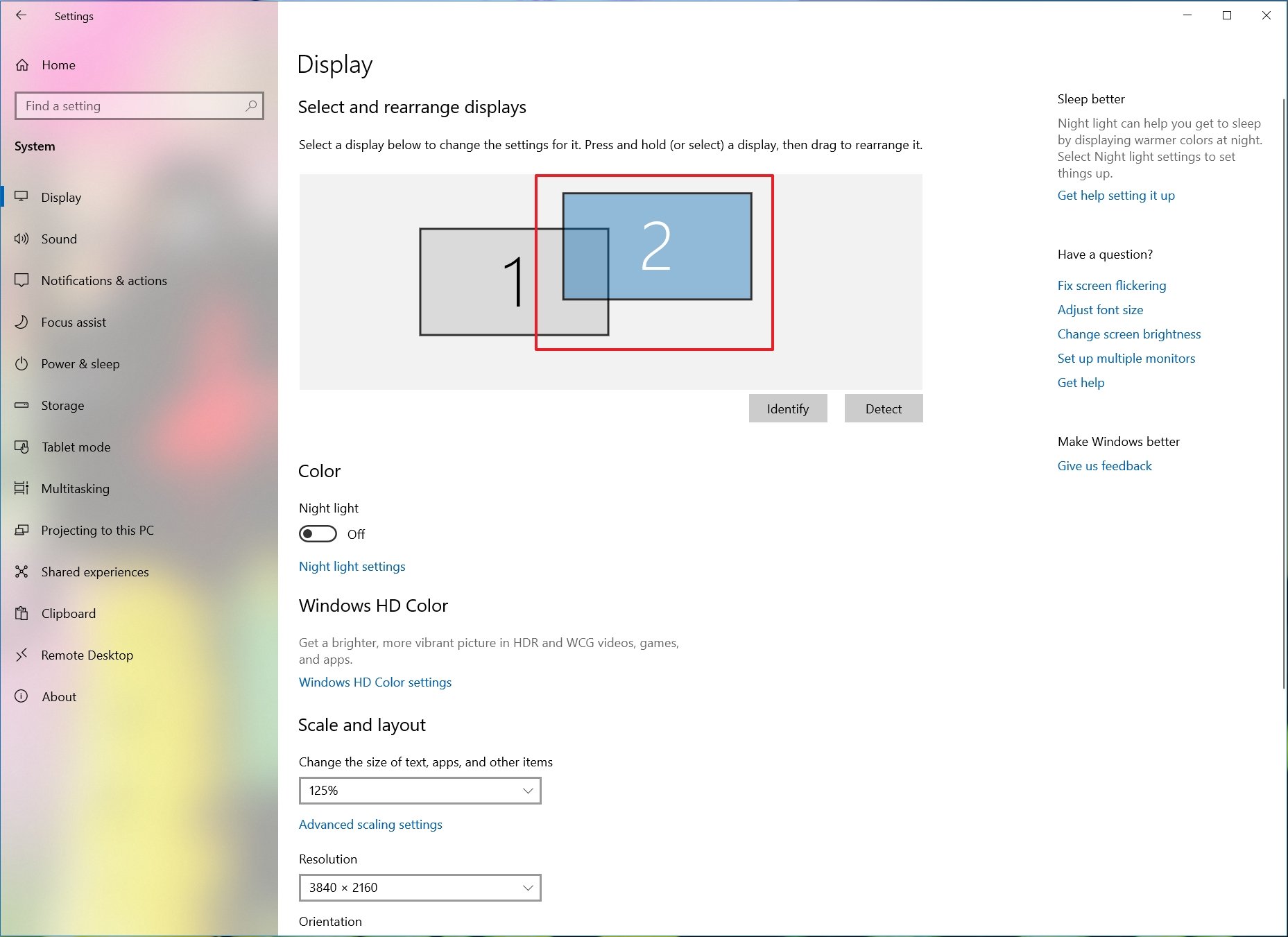
Once you complete the steps, Windows 10 will save the physical layout, and you'll be able to work across each display and run apps without issues.
If you're not sure which monitor you're selecting, click the Identify button to figure out. If one of the monitors isn't showing up, make sure it's receiving power and connected correctly, and click the Detect button. In the case that you're still having problems, reset their connections (or restart the computer), and try the Detect button again.
Comments
0 comments
Please sign in to leave a comment.