
This article will go over a few methods of troubleshooting the HP printer in the workroom.
NOTE: Ensure you have done the following before moving on to the methods below
- Restarted the computer
- Ensure there is power going to the printer from the wall
- Ensure the printer is on
- Ensure there is network connectivity
Method 1: Restarting the print spooler
- Click on the start button icon
- Begin typing services
- Scroll all the way down to Print Spooler
- Right click on Print Spooler
- Left click on Restart
- The spooler for the printer will now restart
- Restart the computer and print a test page
Method 2: Clear the print Queue
Command Method
You can clear the print queue using commands like this.
- Select Start.
- Type
Command. - Right-click “Command Prompt” and select “Run as administrator“.
- Type
net stop spoolerthen press “Enter“. - Type
del %systemroot%\System32\spool\printers\* /Qthen press “Enter“. - Type
net start spoolerthen press “Enter“. - The print queue on your Windows should now be cleared. Type
exit, then press “Enter” to exit the command window.
Method 3: Update the printer driver
- In the search box on the taskbar, enter device manager, then select Device Manager.
- Select a category to see names of devices, then right-click (or press and hold) the one you’d like to update.
- Select Search automatically for updated driver software.
- Select Update Driver.
- If Windows doesn't find a new driver, you can try looking for one on the device manufacturer's website and follow their instructions.
Reinstall the device driver
- In the search box on the taskbar, enter device manager, then select Device Manager.
- Right-click (or press and hold) the name of the device, and select Uninstall.
- Restart your PC.
- Windows will attempt to reinstall the driver.
Method 4: Perform a DNS flush
- Left click on the start button located on the bottom left of the screen
- Type cmd
- A black window will appear, this is the command prompt window
- Type in ipconfig /flushdns
- If successful you will receive the following message below

Method 5: Ensure there is network connectivity
- Left click on the start button located on the bottom left of the screen
- Type cmd
- A black window will appear, this is the command prompt window
- Type in ping followed with a website address such as google.com
- Example: ping google.com
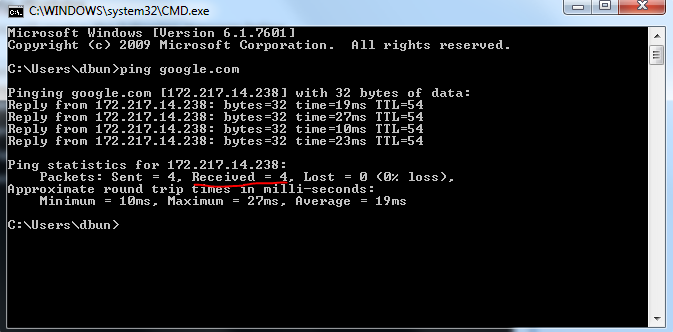
- If you have received 4 packets you have network connectivity
Comments
0 comments
Please sign in to leave a comment.