
Depending on which version of PowerPoint you're using, you can insert pictures, photos, clip art, or other images to your slide show from your computer or from the Internet.
Tip: Microsoft 365 subscribers have access to thousands of royalty-free images and premium templates. See Insert premium images for more information.
Insert a picture from your computer on your slide
-
Click where you want to insert the picture on the slide.
-
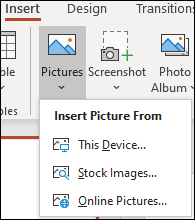
On the Insert tab, in the Images group, click Pictures and then click This Device.
-
In the dialog box that opens, browse to the picture that you want to insert, click that picture, and then click Insert.
Tip: If you want to insert multiple pictures at the same time, press and hold the Ctrl key while you select all the pictures you want to insert.
Insert stock images on your slide
-
Click where you want to insert the picture on the slide.
-
On the Insert tab, in the Images group, click Pictures and then click Stock Images.
-
Type in what image you're looking for, then click on which images you want and click Insert.
Insert a picture from the web on your slide
-
Click where you want to insert the picture on the slide.
-
On the Insert tab, in the Images group, click Pictures and then click Online Pictures.
Tips:
-
If you see a message that "The service required to use this feature is turned off" you may need to check your privacy settings located at File>Account>Account Privacy and then click on Manage Settings. Check the Enable optional connected experiences box, click OK, and then restart PowerPoint.
-
If you don't have access to your privacy settings you may need to contact your administrator.
-
-
In the search box type in the image you're looking for and press enter.
-
Select all the images you want and then click Insert.
Tip: After you insert a picture, you can change its size and position. To do so, right-click the picture, and click Format Picture. You can then use the Format Picture tools that are on the right of your slide.
Comments
0 comments
Please sign in to leave a comment.