
Manage Develop presets
Introduced in Lightroom Classic CC 7.4 (June 2018 release)
Using the Manage Presets option, you can show or hide various Develop preset groups that are displayed in the Presets panel and other places where the Develop presets list appears.
To show/hide preset groups, follow the steps below:
In the Develop module, click the plus (+) icon at the upper-right corner of the Presets panel and choose Manage Presets from the menu.
In the Manage Presets dialog, select the preset groups that you want to show. Deselect the preset groups that you want to hide.
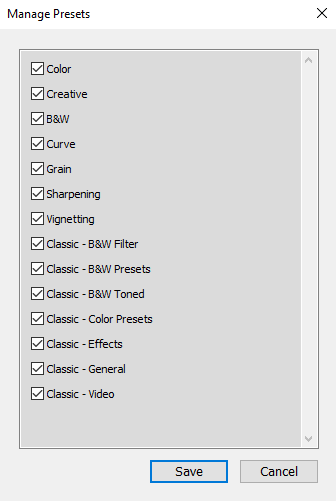
Click Save.
Presets panel now displays only those preset groups which you've selected using the Manage Presets dialog.
To show all the hidden preset groups, you can right-click (Win) / Control-click (Mac) any preset group in the Presets panel and choose Reset Hidden Presets from the menu.
Comments
0 comments
Please sign in to leave a comment.