
The Develop module contains two sets of panels and a toolbar for viewing and editing a photo. On the left are the Navigator, Presets, Snapshots, History, and Collections panels for previewing, saving, and selecting changes you’ve made to a photo. On the right are the tools and panels for making global and local adjustments to a photo. The toolbar contains controls for tasks such as changing between Before and After views, playing an impromptu slideshow, and zooming.
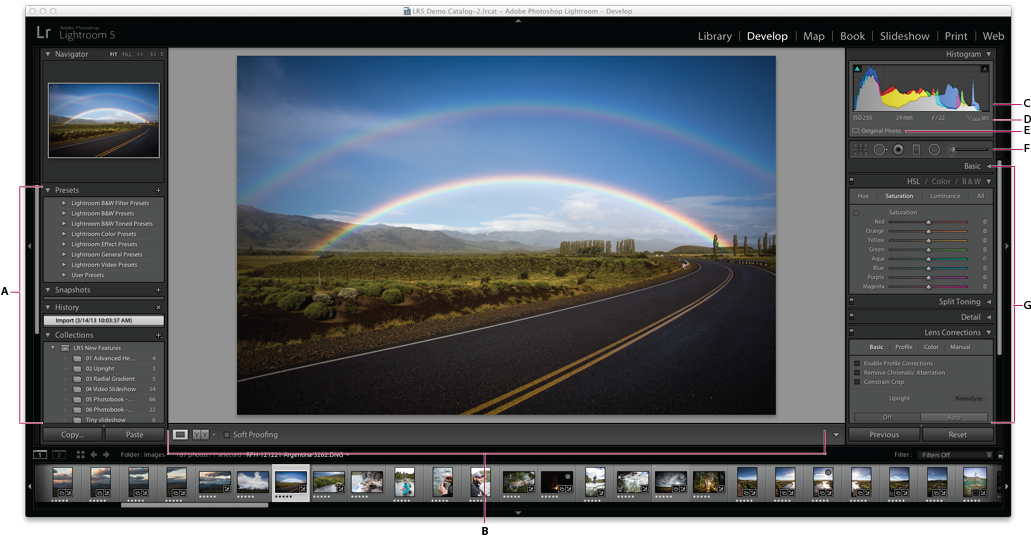
The Develop module
A. Presets, Snapshots, History, and Collections panels B. Toolbar C. Histogram D. Photo information E. Smart Preview Status F. Tool strip G. Adjustment panels
- The Histogram panel in the Develop module allows you to measure color tones as well as make tonal adjustments to the photo.
- Additional information about the Smart Preview status of the photograph is displayed below the histogram/EXIF information/RGB values.
- The tools in the tool strip let you fix red eye, remove dust and spots, crop and straighten photos, and apply adjustments to specific areas of a photo.
- The Basic panel contains the main tools for adjusting the photo’s white balance, color saturation, and tonal scale.
- The Tone Curve and HSL/Color/B&W panels contain tools for fine-tuning your color and tonal adjustments.
- The Split Toning panel colors monochrome images or creates special effects with color images.
- The Detail panel lets you adjust sharpness and reduce noise.
- The Lens Corrections panel lets you correct chromatic aberration and lens vignetting caused by the camera lens.
- The Transform panel lets you correct the horizontal and vertical distortions.
- The Effects panel lets you apply a vignette to a cropped photo, add a film-grain effect, or adjust the amount of haze or fog in a photograph.
- The Calibration panel makes adjustments to the default calibration settings for your camera.
You can drag the Develop panels on the right of the workspace in the order you would like to see them in your custom Develop panel menu. You can also choose to show or hide the panels as required.
Comments
0 comments
Please sign in to leave a comment.