
Why use the Action Center
The action center provides you with a quick way to manage your device. You will use the action center to manage updates, connect to a projector, connect to home wifi, and to turn on/off notifications to name a few.
How to use the Action Center
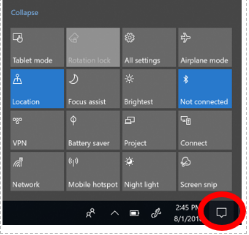
To open action center, do any of the following:
- On the right end of the taskbar, select the Action Center icon.
- Press the Windows logo key +

- On a touchscreen device, swipe in from the right edge of the screen.
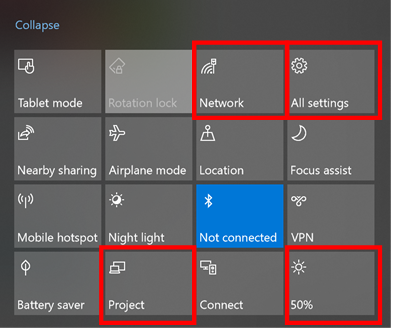
Explore the functions you might use most often:
- Network:This brings up any wifi access available in your area. This will be key to you setting up your internet access for use at home.
- All settings:This is one more way for you to access your settings besides going to the Start Menu or using the search box.
- Project:If using Windows logo key+P on your keyboard is not your strategy for connecting to a projector, you can use the project button in the action center to get to the same location.
- Brightness:The percentage on this button indicates how bright your screen is at this point in time. You can either have the computer decide how to set this with battery saver, or you can click this button to increase or decrease the % of brightness you prefer.
- Connect:Bonus! Does your room display do wireless to projection? If so, you will want to check out the Connect Once you click it, a list will appear. Click on your display device, put in the password as needed, and watch the magic happen. You can now walk all around the room without having to be tied to a monitor or desk.
Comments
0 comments
Please sign in to leave a comment.