
This article will go over different methods of troubleshooting wifi.
NOTE: Ensure you have done the following before moving on to the methods below
- Restarted the computer
- Ensure your wifi is turned on
- Ensure you are connected to the correct wifi network
- BCLS is the wifi network you will want to be connected to
Method 1: Execute a gpupdate /force command prompt
- Left click on the start button located on the bottom left of the screen
- Type cmd
- A black window will appear, this is the command prompt window
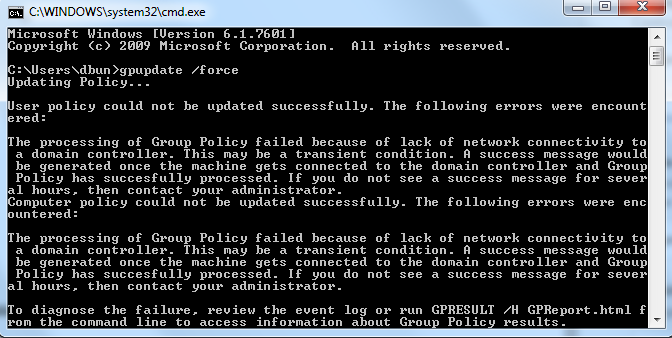
- Type in gpupdate /force
- The group policy will update
- You will get one of two messages
- Message 1: The group policy has been updated
- Message 2: A rather lengthy message stating that the group policy was not able to update
Method 2: Perform a DNS flush
- Left click on the start button located on the bottom left of the screen
- Type cmd
- A black window will appear, this is the command prompt window
- Type in ipconfig /flushdns
- If successful you will receive the following message below

Method 3: Ping a website to ensure you have network connectivity
- Left click on the start button located on the bottom left of the screen
- Type cmd
- A black window will appear, this is the command prompt window
- Type in ping followed with a website address such as google.com
- Example: ping google.com
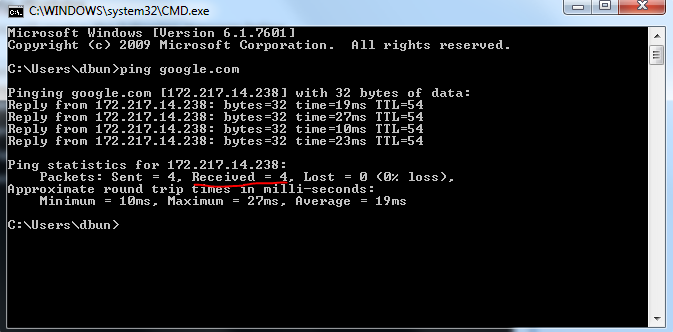
- If you have received 4 packets you have network connectivity
Method 4: Open network diagnostics
Windows has a tool called Windows Network Diagnostics that lets users troubleshoot connection issues.
Go to Windows Settings > Network & Internet > Status. Under Change Your Network Settings, click Network Troubleshooter.

Windows Network Diagnostics will run a couple of tests to see what’s possibly causing your Wi-Fi issues.

Windows will let you know if it does not find any issue. Otherwise, you will be given a list of possible actions to take to resolve the problem.
This tool, or a version of it, should be available in Windows 7 to Windows 10.
Method 5: Update windows
Your network problems could be caused by your system. If that is the case, Windows could have possibly released a fix. Try updating your Windows machine to the latest release.

Go to Windows Settings > Update & Security > Windows Update. Click Check for Updates. If there are updates available, Windows will download and install them.
Method 6:
Should none of these methods work, contact your IT admin.
Comments
0 comments
Please sign in to leave a comment.