
How to Schedule or Reserve a 3D Printer
Follow the steps in this article to reserve time on a 3D printer.
NOTE - Prior to reserving time on a 3D printer you must have completed the following items:
- Have passed the safety training for 3D printing or have a responsible staff member schedule the time on your behalf.
- Have a 3D model to print (if you don't have one you may like to read Getting 3D Models[LINK])
- Have sliced the model in CURA and saved a .gcode file (if you haven't you may like to read Slicing[LINK])
- Have an estimate of your printing time from CURA
Step 1: Go to Lab Agenda
- Go to TAF@Saghalie's Makerspace LabAgenda website [LINK]
a. Use your login information to access our LabAgenda. Note - invites are sent out after the completion of your safety training.
b. Alternatively, a teacher or other staff member who has received safety training may schedule time on your behalf.
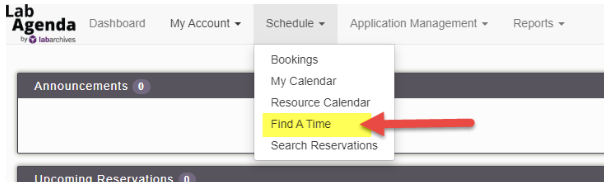
Step 2: Navigate to "Find a Time"
|
 |
Step 3: Fill out the "Find a Time" form
In order to reserve a 3D printer, you need to fill out the "Find a Time" form by following the steps below to ensure you select a time that fits your schedule and needs.
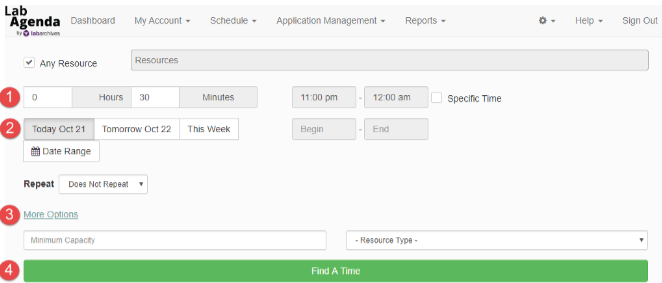
- Input the total time you need a 3D printer for
- NOTE - be sure to add 50% to the total time CURA indicated (ex. CURA said I need one hour to print so I am going to select 1 hour and 30 minutes)
- Select the date(s) you would like to use a 3D printer
- IF you select "Date Range" then enter that range in the "Begin" and "End" boxes
- Click on "More Options" THEN select "FDM 3D Printer"
- Click "Find A Time"
Step 4: Select a reservation time
After you click the green "Find a Time" button you will see the available time slots listed. Select the timeslot that best fits your needs.
NOTE - Do not select an "Engineering Class" 3D printer unless you have approval from your school's Engineering teacher.
Step 5: Complete & "Create" the new reservation
Once you select a time slot that works for you then you will be taken to the below window. Please follow the steps to 'Create' the 'New Reservation'.
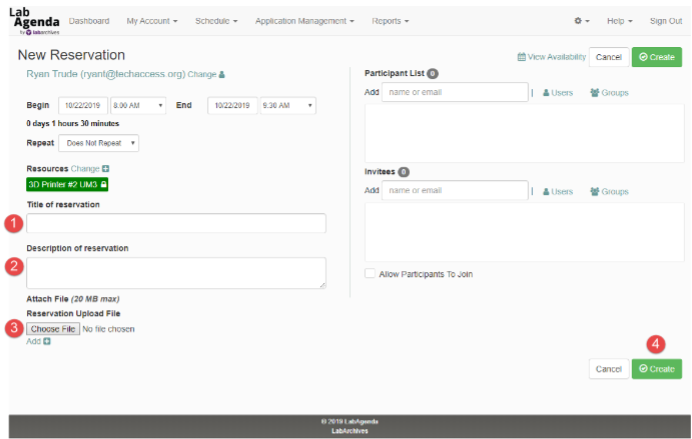
- Put your First and Last Name in the "Title of reservation"
- If you are scheduling this for a student then fill in the title ....[STUDENT NAME] - [YOUR NAME]
- You can leave the "Description of reservation" blank
- If you are scheduling this for a student it would help to put a description of what they are printing for your reference
- Click "Choose File" and attach your (or the students) .gcode file to the reservation
- Click "Create"
Makerspace staff will review the reservation and either approve the reservation or assist in rescheduling the reservation.
Comments
0 comments
Please sign in to leave a comment.