
When logging into canvas ensure that the student is using the google chrome web browser. All student laptops have internet explorer set as default, internet explorer is causing a lot of these issues.
Also please ensure the student is using the link here to log into launchpad.
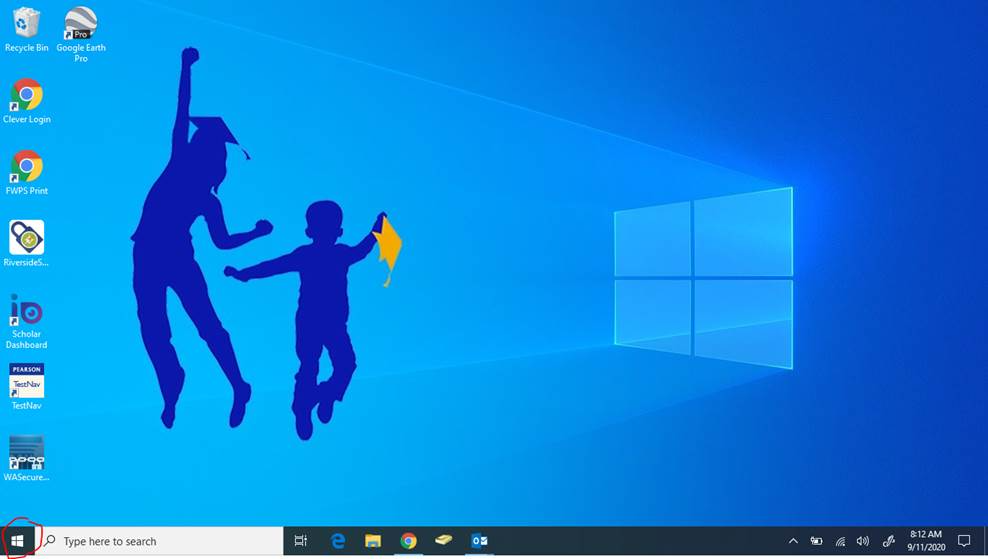
To get to google chrome press the start button on the bottom left of the desktop
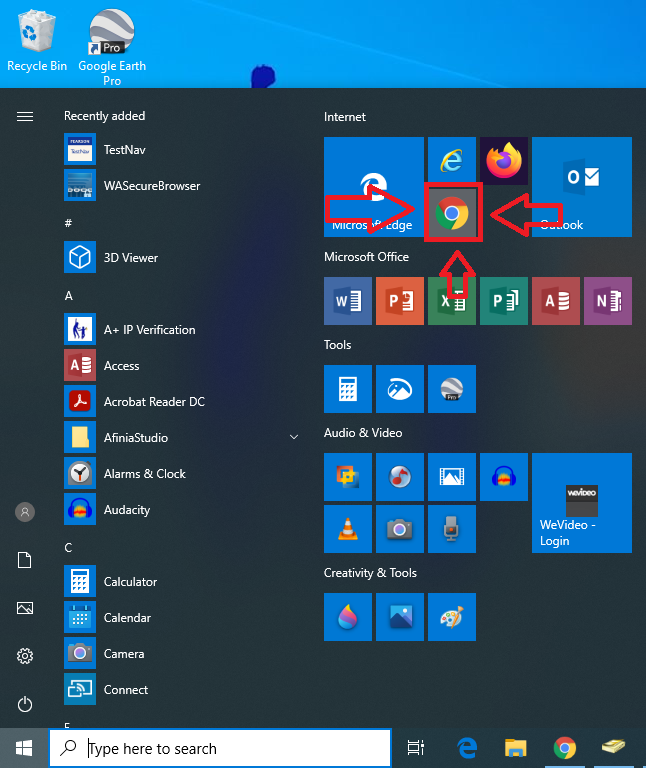
Then select the google chrome icon
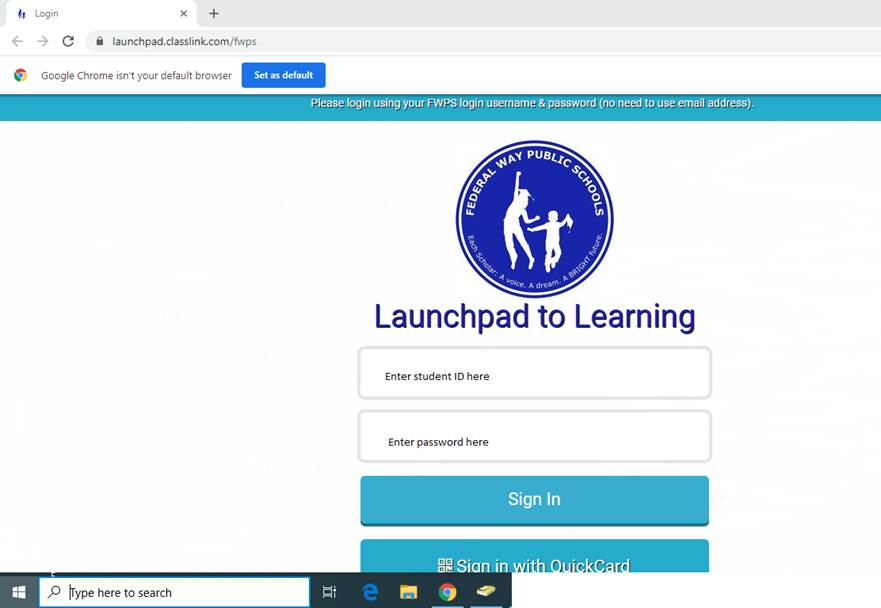
They will then be brought to the page below. The student will then sign in with their credentials
Username: Student ID
Password: The password the student has set it to. If they are not able to login, please have them call the office to request a password reset.
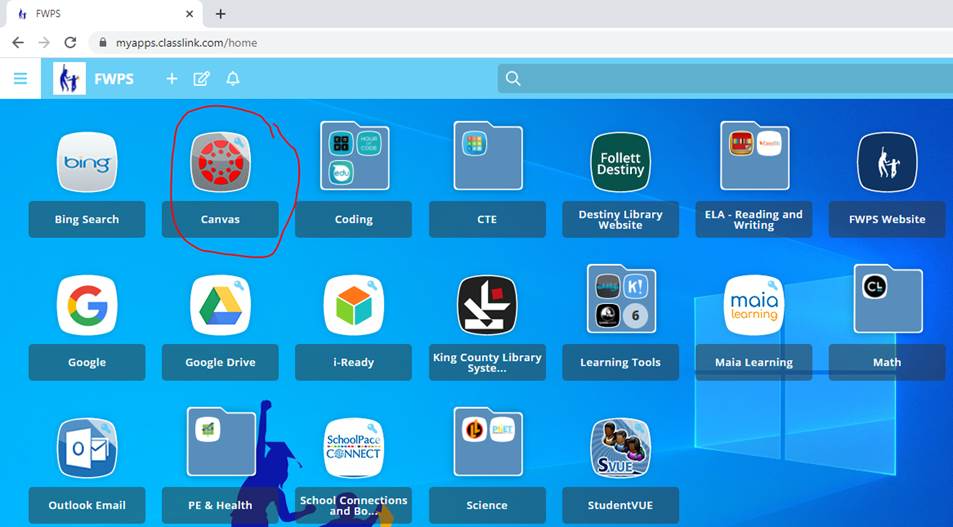
Once logging in, to access canvas select the canvas icon (circled in red)
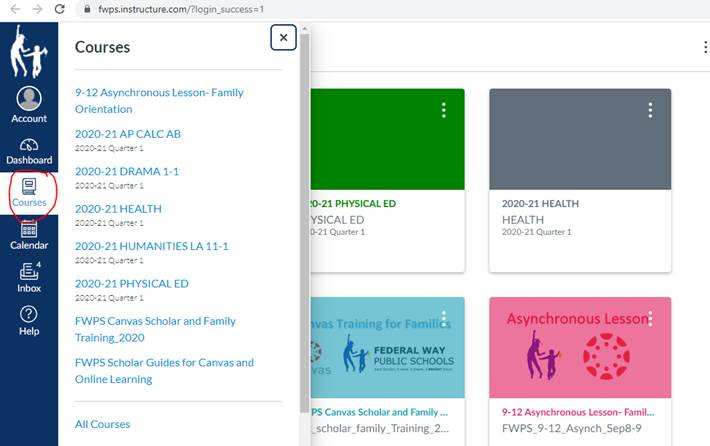
After selecting the canvas icon you will be presented the screen below. Click on the courses tab which is circled in red to access your classes
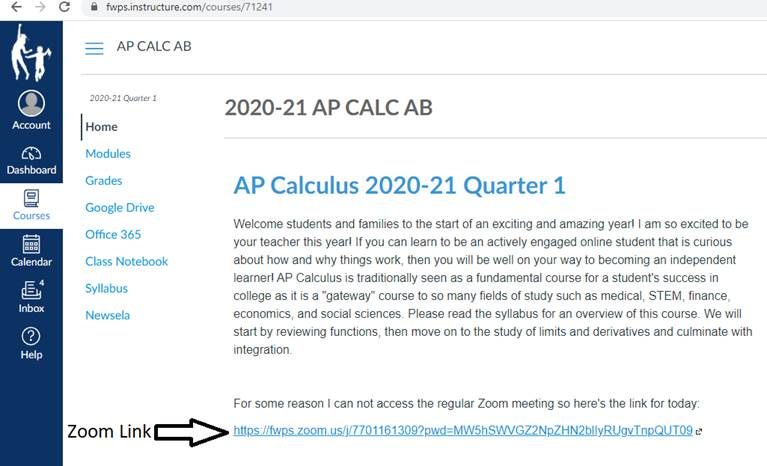
Once you select a class you’ll be presented to the home page of the class (see example below) Sometimes educators will post the daily zoom link at the top of the page
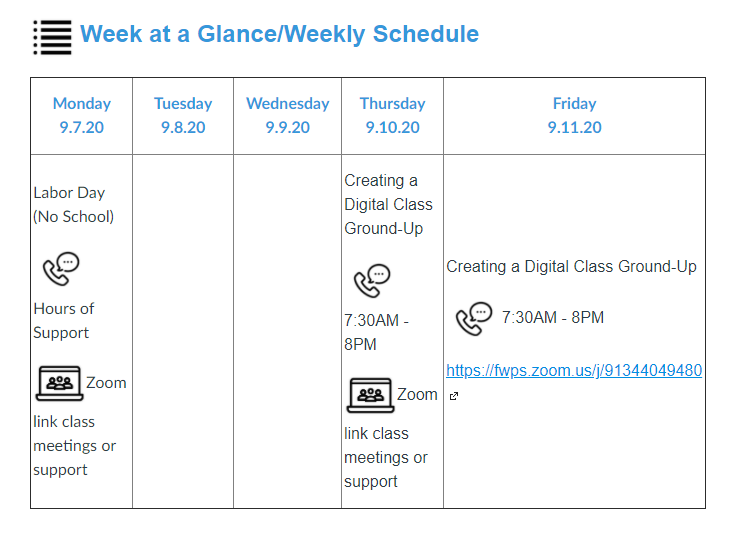
Some times you will have to scroll down the page to access the zoom link located in the “Week at a glance” calendar (see example below)
Comments
0 comments
Please sign in to leave a comment.